Quotex App
Quotex offers mobile apps for multiple devices, but finding the right version can be tricky due to name changes and occasional unavailability.
Risk warning: Trading carries high risk of losing your capital.
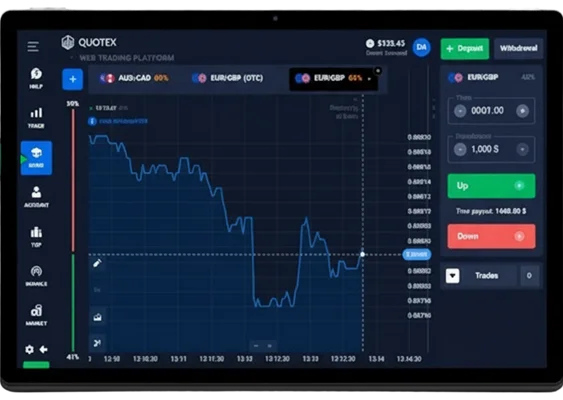
Official Quotex App Availability by Platform
The Qxbroker application status varies dramatically across operating systems. Android users have access through Google Play Store, iPhone users must use web alternatives, and desktop computers rely on browser-based solutions.
Android App Current Status
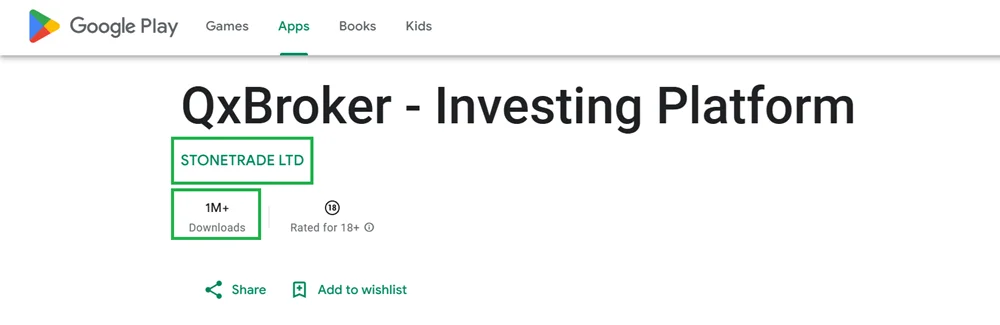
Google Play Store hosts the official Quotex Android application under the name “QxBroker – Investing Platform.” The company changes this name every few months to circumvent Google’s restrictions on digital options platforms. This naming pattern creates confusion among traders who search for “Quotex” directly and download unofficial versions instead.
The official Android app experiences regular technical issues. Users report failed deposit attempts, account synchronization problems, and unexpected logouts during trading sessions. These problems stem from Google’s policies toward OTC trading platforms.
iOS Application Limitations
Apple App Store contains no official Quotex application for iPhone or iPad users. Apple’s financial services policies prevent most digital options platforms from distributing iOS apps through official channels. Previous attempts resulted in quick removals from the App Store.
iPhone and iPad users must rely on web-based solutions. Safari browsers provide full access to Quotex functionality, though users miss native app features like push notifications and Face ID authentication.
| Platform | Official App | Alternative Solution | Main Limitations |
|---|---|---|---|
| Android | QxBroker app | PWA installation | Frequent bugs, name changes |
| iOS | None | Safari web app | No push notifications |
| Windows/Mac | None | Browser access | See PC trading guide |
Android Installation: Official Methods and Warnings
Android users must follow specific steps to locate the legitimate Quotex application. Visit the official Quotex website rather than searching Google Play directly.
Google Play Store Download Process
Open the official Quotex website in any browser on your Android device. Scroll down until you find the Google Play icon or download button. This link directs you to the current official application listing.
The official app appears as “QxBroker – Investing Platform” with over 10 million downloads and a 4.1-star rating. These metrics help verify authenticity, though the name will change again within months.
Download requires Android 5.0 or higher and 22.5 MB of storage space. Installation follows standard Google Play procedures with permission requests for camera access, storage, and network connectivity.
Android Installation Steps
- Open quotex.com on your device.
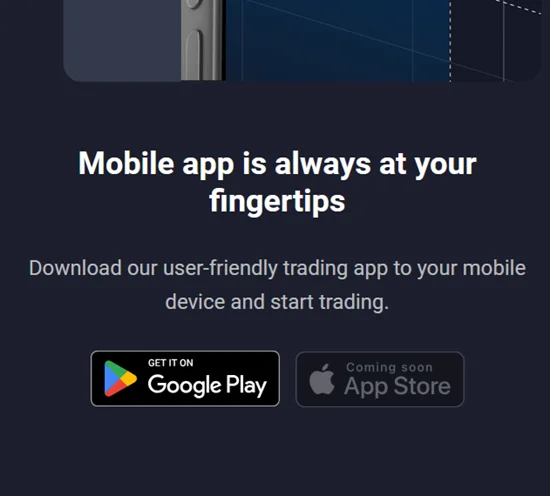
- Scroll until the download icons appear.
- Tap the Android icon to jump to Google Play.
- Install the app.
- Log in with your account or create a new one.
Alternative Mobile Web Setup
Creating a web app shortcut provides more reliable access than downloading the application. Open Google Chrome on your Android device and visit the Quotex website. Tap the three-dot menu and select “Add to Home Screen.”
This creates an icon that launches Quotex in a dedicated browser window without the address bar. The result mimics a native application while maintaining web-based stability and security.
iOS Access Solutions for iPhone and iPad Users
iPhone and iPad users require web-based solutions since no official App Store application exists. Safari provides full trading functionality through optimized mobile interfaces.
Web App Installation via Safari
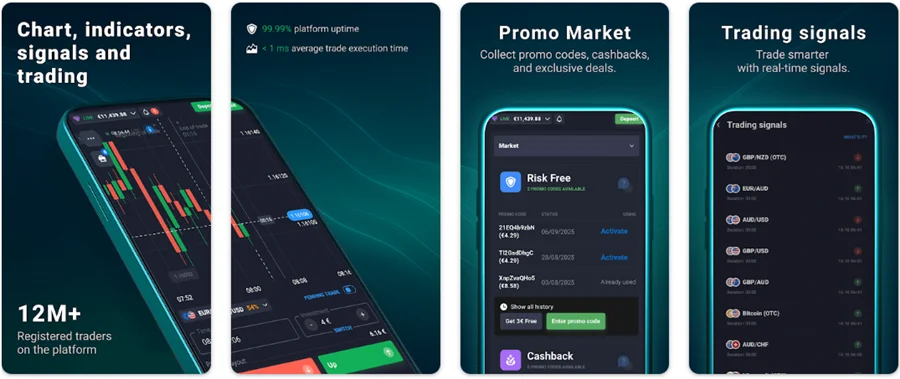
Safari offers Progressive Web App capabilities that create app-like experiences from websites. Open Safari and navigate to the official Quotex website. The platform detects iOS devices and optimizes the interface for touch navigation.
Mobile Safari supports all trading functions including chart analysis, order placement, account management, and payments. The interface adapts to different screen sizes, providing tablet layouts on iPad and compact interfaces on iPhone.
Creating Home Screen Shortcuts
Transform the web experience into an app-like icon using Safari’s “Add to Home Screen” feature. Tap the share button while browsing the Quotex website and select “Add to Home Screen.”
Name your shortcut “Quotex Trading” and tap “Add.” The icon appears on your home screen and launches directly into the trading interface without browser elements.
iPad-Specific Interface Features
iPad devices receive enhanced layouts that use larger screen space. The platform displays multiple charts, expanded technical analysis tools, and professional trading interfaces that smaller devices cannot accommodate. Landscape orientation activates desktop-style layouts with sidebar navigation and multi-panel charts. Split-screen multitasking allows monitoring trades while researching market analysis in other applications.
PC Installation Options: Web Apps and Alternatives
Quotex on desktop works through the browser, with optional web‑app installation for an app‑like experience. If you want a direct desktop setup, you can also check our detailed guide on the Quotex app for PC, which covers installation methods and supported systems.
Modern browsers like Chrome and Edge support Progressive Web Apps, allowing you to install Quotex as a standalone window without standard browser controls.
Quick PC Setup:
- In Chrome or Edge, open quotex.io
- In the browser menu, choose “Install App”
- Launch it using the desktop icon
There are also additional, even slightly unconventional ways to install the app, which you can learn about using the link above.
Security Risks and Safe Download Practices
Unofficial Quotex applications pose significant security threats. Understanding these risks helps traders make informed decisions about installation methods.
Unofficial APK Dangers
Third-party websites distribute modified Quotex APK files containing malware, spyware, or account theft mechanisms. These applications appear identical to official versions but include hidden code that compromises device security.
Malicious APK files can access banking applications, steal personal information, or use devices for cryptocurrency mining. Some versions redirect login credentials to fake servers that capture usernames and passwords.
Verifying Official Sources
Legitimate Quotex applications only come from Google Play Store listings linked from the official website, or the web platform itself. Any other source should be considered dangerous regardless of appearance. Check download URLs carefully. Official Google Play URLs contain “play.google.com” followed by the application identifier. Suspicious links use similar domains like “googleplay-app.com” that redirect to malware.
Security Warning Signs to Avoid:
- APK downloads from third-party websites
- Applications requesting excessive permissions
- Versions with different names than official listings
- Downloads bypassing Google Play Store
Performance and Troubleshooting
Common issues affect Quotex applications across different devices. Understanding these problems helps traders maintain consistent access.
Common Installation Problems
Android users encounter “App not installed” errors when downloading from unofficial sources or when storage runs low. Clear cache and ensure at least 500MB free space before installation.
iOS users may experience slow loading when cellular networks provide poor coverage. Switch to WiFi connections for setup and during heavy trading periods.
Device Requirements
Android devices need version 5.0 or higher and at least 2GB of RAM to keep the app running smoothly. Older systems may experience delays or forced shutdowns.
iOS devices require iOS 12.0 or newer, along with Safari 12 or above, to ensure full compatibility with the platform. Keeping the system updated improves overall performance.
During active trading, the app can use around 50-100MB of data per hour. Users with limited data plans should monitor consumption to avoid unexpected charges.
Regional Considerations and Access
Quotex availability varies across countries due to financial regulations. Google Play Store blocks applications in European Union countries following MiFID II regulations. EU users must rely on web-based access.
United States users cannot access Quotex through official channels due to SEC and CFTC restrictions. Pakistan, India, and Bangladesh represent primary markets where applications remain available through Google Play Store.
Currency support varies by region with USD serving as primary denomination. Local payment methods and customer service in English, Hindi, Urdu, Bengali, and Arabic serve major markets.
Best Ways to Use the Quotex App Across All Devices
Web-based trading provides the most reliable solution across all regions and devices. Mobile apps work for account monitoring and simple trades, but complex analysis benefits from desktop browser capabilities.
The trend toward Progressive Web Apps represents the future for trading platforms seeking to avoid app store restrictions while providing native-like experiences. Web versions eliminate security risks associated with unofficial APK files while providing superior performance.
For serious trading activities, prioritize web-based access over mobile applications. Users requiring mobile functionality should limit installations to official Google Play Store versions linked from platform websites.
Do not forget that this broker is offshore and has mixed reviews, and for obvious reasons does not provide services (according to him) to residents of the EU as well as several other regions. Keep this in mind when registering or installing the app, since availability, legal status, and local compliance may differ depending on your country. Always check the platform’s current restrictions and make sure the service is actually permitted in your location before you begin trading.
FAQ - QxBroker App
The official QxBroker application from Google Play Store is generally safe but experiences technical issues. Web-based access provides better security and stability. Avoid APK files from third-party websites.
Google Play policies prohibit digital options trading applications, forcing name changes to avoid removal. This creates instability for mobile users.
Safari provides full trading functionality, and the platform is primarily designed as a web-based service, so downloading an app is not necessary. You can also create a home screen shortcut for an app-like experience without installing anything.